QuickBooks Workforce
- 4.7
- Rating
- 5.00M
- Installs
- Free
- Price

 Analysis by App-foxy
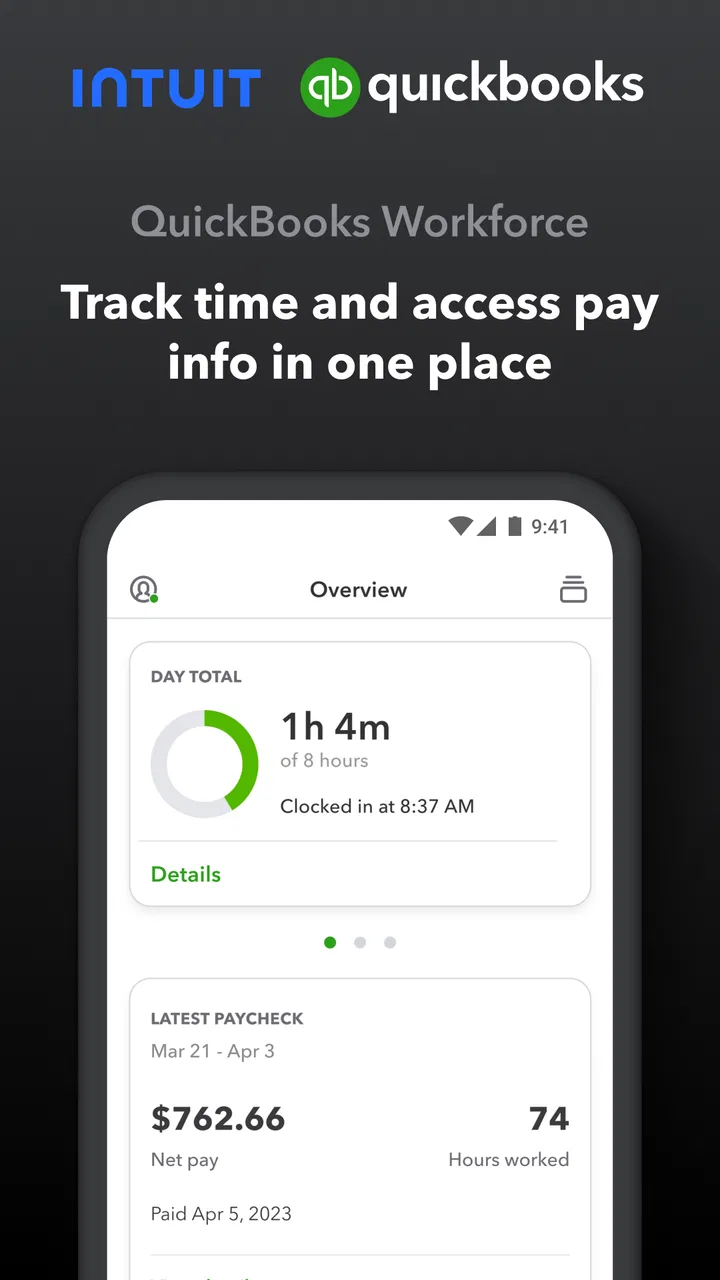
I approached QuickBooks Workforce as a practical work companion rather than another app that promises to solve every payroll problem. Its purpose is focused: employees can check pay information and record working time in one place, while teams already using QuickBooks can give staff a more direct way to interact with those parts of their work routine. That narrow focus is its biggest strength, but it also explains why the first few minutes can feel less straightforward than expected.
This is a free productivity app from Intuit Inc, aimed at Everyone and available for devices running Android 8.0 or later. It has been around since October 1, 2013, and its current release is 4.85.1.20260217.1.RELEASE. Those details matter less than the practical question: will it fit the way your employer handles time and pay? If your workplace already relies on QuickBooks, I think it can remove a surprising amount of routine checking. If you just want a standalone clock-in tool, it is probably the wrong place to start.
Where the real friction begins
The most common difficulty is not understanding what the app is meant to do. The difficulty is getting the app, the employee account, and the employer’s QuickBooks setup to agree with one another. A person may install it expecting to immediately see pay details or start recording time, then discover that access depends on how the workplace has invited or configured them.
You May Also Like

 Blood Strike: 2.5 Anniversary
Blood Strike’s Loadouts Turn Every Drop Into a Tactical Gamble
A close look at Blood Strike’s custom loadouts: how fast access to signature weapons reshapes its battle royale rhythm, rewards preparation, and narrows the gap between fights.

 Pandora - Music & Podcasts
Pandora’s Music Is Easy to Start, but Harder to Recover
Pandora’s strength is its low-effort path from a seed to a station. Its weak spot is how much confidence it asks you to place in connection, setup, and quiet recovery.

 8 Ball Pool
 Is Built on Rivalries, Rematches, and Routine
A close look at the rivalries, rematches, shared routines, and unanswered safety questions that turn a quick pool match into a persistent mobile community.

 Samsung Music
’s Quiet Strength Is Playing What You Already Own
Its reach comes less from spectacle than from dependable access to a personal library. That simplicity is both the app’s strongest retention engine and its ceiling.

 AccuWeather: Weather Radar
AccuWeather Review: A Quick, Clear Forecast for Everyday Decisions
For everyday plans, the best forecast is the one you can understand quickly. AccuWeather makes rain timing, radar, and local conditions easy to act on, with a few trade-offs.

 Hill Climb Racing
Why Hill Climb Racing Still Turns Crashes Into One More Run
A tiny car, a bumpy hill and one more upgrade: Hill Climb Racing keeps resurfacing because its simple chaos makes every near-miss feel personal.
More From Our News Desk



That distinction is important. Workforce is not a general-purpose personal payroll notebook. It is connected to an employer’s process. If your workplace has not added you correctly, if you use a different email address from the one associated with your work account, or if your employer has not enabled the relevant workflow, reinstalling the app will not magically fix the underlying problem.
I would begin by treating the sign-in details as part of the setup, not as a minor formality. Use the account information your employer expects, and check for small differences such as a personal address versus a work address. When an invitation or account message is involved, opening it from the same device you plan to use can also reduce confusion. The goal is to establish one consistent identity before troubleshooting anything else.
Another point that catches people out is the difference between seeing pay information and tracking time. They are related, but they are not the same task. Your employer may use one part of the app actively while handling another part elsewhere. A missing pay detail does not automatically mean time tracking is broken, and an available time workflow does not guarantee that every payroll detail will appear immediately.
The first useful question is not “Why is the app broken?” but “Which part of my employer’s workflow am I supposed to use?” That question often saves more time than repeatedly signing out and back in.
What to check before blaming the installation
Start with the basics, but do them in a deliberate order. Confirm that your device meets the minimum operating-system requirement, then update the application if an update is available through your normal app store. An older device system can create compatibility trouble that looks like an account issue, while an outdated app can make a workplace instruction no longer match what appears on screen.
Next, check whether the problem affects one action or the whole account. If you can open the app but cannot access pay information, that points in a different direction from an app that will not open at all. If you can sign in but cannot submit time, note that separately. Clear descriptions make it much easier for a manager or payroll administrator to determine whether the issue is personal, account-related, or shared by the team.
I also recommend checking the phone’s ordinary conditions before making major changes. A weak connection can interrupt sign-in or delay information loading. Switching between a reliable Wi-Fi connection and mobile data can help identify whether the problem follows the network. Keeping the device’s date and time set automatically is another sensible check for apps that communicate with online services, because an incorrect clock can interfere with secure connections.
Do not jump straight to deleting the app. Reinstallation can remove local state, but it does not correct an incorrect employee record or an employer-side setting. It may also create extra work if you have to repeat the sign-in process without knowing the original cause. I would reserve it for cases where the app itself behaves badly after confirming the account and device basics.
A calmer setup for everyday use
Once access works, make the first session a test rather than waiting until the end of a busy shift. Open the pay area and see whether the information your employer intended to share is visible. Then review the time workflow at a quiet moment, when you can understand what the app expects from you. This is especially useful for people who move between locations or have irregular schedules, because discovering a problem at the moment a time entry matters is unnecessarily stressful.
Keep a simple personal note of what you actually submitted and when, particularly during the first few workdays. I am not suggesting that you duplicate your employer’s records permanently. A short transition record gives you something to compare against if a time entry appears late, looks different from what you expected, or needs clarification. It also helps separate a display delay from a missed action.
For shared devices or phones used for both personal and work purposes, be careful about account switching. The fastest route is usually to keep one clearly identified work login rather than repeatedly moving between accounts. If several people use the same device, each person should confirm whose account is active before recording anything. A time entry attached to the wrong employee is a workflow problem, not something that a later reinstall reliably repairs.
Recovering when a workflow goes wrong
When something fails, I find it more productive to retrace the exact step than to repeat the entire process. Did the app fail before sign-in, after sign-in, while loading information, or after an action appeared to complete? Write down the point where the behavior changed. That small detail gives your manager or payroll contact a useful starting point and prevents vague reports such as “Workforce is not working.”
If a time action seems not to have gone through, avoid submitting it repeatedly without checking what the app shows afterward. Duplicate attempts can create more uncertainty than the original interruption. First confirm your connection, return to the relevant screen, and look for evidence that the action was accepted. If the status remains unclear, record the approximate time and contact the person who manages your workplace’s time records rather than guessing.
The same principle applies to pay information. If a detail looks old or incomplete, give the screen a moment to load and try again on a stable connection. Then compare the issue with the pay schedule or communication used by your employer. An app can display information that has not yet been updated by the payroll process; it cannot independently create a new payroll record.
There is also a useful difference between a temporary display problem and a persistent account problem. A temporary issue may disappear after reopening the app or changing networks. A persistent issue follows the same account and action each time. If the problem is repeatable, collect the exact wording of any message, the screen where it appears, and whether coworkers experience the same thing. That is far more actionable than clearing data repeatedly.
Safe troubleshooting should stay reversible. Close and reopen the app, verify the connection, confirm the correct account, and install available updates. If those steps do not help, ask your employer’s designated contact what the expected workflow is. Only then should you consider more disruptive steps such as reinstalling. If you do reinstall, make sure you know the correct sign-in details first, because the app cannot help much if the recovery process begins with an uncertain account.
When the app is not the cause
This is where expectations matter most. QuickBooks Workforce sits at the employee-facing end of a larger process. Pay information depends on payroll activity, and time records depend on how the employer has arranged its QuickBooks workflow. A missing entry, incorrect schedule, or delayed update may originate outside the phone.
For example, imagine finishing a shift and finding that the time record is not visible as expected. The phone may be functioning normally. The connection may be fine. The issue could be that the employer’s setup uses a different approval path, that the entry has not reached the stage where it appears to you, or that the workplace expects a supervisor to correct it. The right next step is to ask how that employer handles the specific record, not to assume the application has lost it.
Likewise, if several employees suddenly report the same behavior, that is a strong reason to involve the person responsible for the company’s QuickBooks account. A shared issue is unlikely to be caused by one handset alone. Reporting the time it began, the action affected, and whether pay information or time tracking is involved gives the administrator a clearer picture.
This limitation may disappoint people who expect complete control from their phone. Workforce can make access more convenient, but it does not replace the employer’s payroll administrator, approval rules, or internal correction process. I see that as a sensible boundary, although it means the app feels less independent than many consumer productivity tools.
Who benefits most from this focused approach
The best fit is an employee whose company already uses QuickBooks and wants a straightforward way to check work-related pay information or handle time records without relying entirely on a desktop. It is particularly useful for people who are away from an office, work changing shifts, or need to check details during a normal day without asking a manager for every small update.
Managers and small teams may also appreciate the reduced back-and-forth, but the employee experience still depends on the employer’s configuration. The app is not a substitute for deciding how time should be approved or how payroll questions should be handled. It works best when the workplace has already established those rules clearly.
I would skip it if you need a personal budgeting app, a full accounting package, or an independent timesheet system that works without an employer connection. It is also not the ideal choice for someone whose workplace uses another payroll platform. In that situation, the familiar alternative provided by the employer will usually be more useful, even if it has fewer conveniences.
How it compares with ordinary alternatives
Compared with writing hours in a notebook, sending them by message, or keeping a personal spreadsheet, Workforce has the advantage of placing time and pay-related information closer to the employer’s existing process. That can reduce transcription mistakes and make routine checking less dependent on memory. The trade-off is that you have less freedom to customize the workflow than you would with a standalone spreadsheet.
Compared with a general time-tracking app, its value is not broad flexibility. A standalone tracker may offer more control for personal projects, freelance billing, or multiple clients. Workforce makes more sense when the relevant record belongs to one employer and needs to fit that employer’s QuickBooks process. Choosing between them is less about which app has more features and more about where the official record must live.
Compared with checking everything on a desktop, the mobile format is more convenient for quick checks and work away from a desk. However, a larger screen may still be preferable when you need to investigate a complicated discrepancy or communicate with payroll. I would use the phone for routine access and treat the employer’s established support channel as the place for corrections and exceptions.
My practical verdict
After looking at it as an everyday work tool, I see QuickBooks Workforce as a focused and useful companion rather than a complete workplace management system. Its free price makes trying it easy, and its 4.7 average from around 59 thousand ratings, along with over 5 million installs, suggests that many people find the basic idea worthwhile. The numbers are encouraging, but they do not remove the need for a compatible employer setup.
The app earns its place when you need quick access to work-related pay information and time tracking tied to QuickBooks. The strongest practical benefit is reducing small administrative interruptions: checking something yourself, recording time through the expected route, and keeping your workday moving. The less obvious benefit is diagnostic clarity. Once you understand which part of the process belongs to the app and which part belongs to payroll administration, problems become easier to describe and resolve.
My main reservation is that new users may expect a self-contained tool and become frustrated when account setup or employer configuration gets in the way. That is not a reason to reject it, but it is a reason to set it up before you urgently need it. Test access, learn the expected time workflow, and know who to contact when a record does not look right.
For an employee already working inside QuickBooks, I would recommend giving it a fair trial. For someone looking for flexible personal time tracking or independent payroll management, I would choose a different category of app. In the right workplace, this productivity tool is pleasantly practical; outside that context, its narrow design becomes its biggest limitation.
FAQs for QuickBooks Workforce
01What is QuickBooks Workforce and how does it benefit employees?
QuickBooks Workforce is an online platform that allows employees to securely access their pay stubs, W-2s, and other payroll information. It benefits employees by providing 24/7 access to their payroll data, which helps them manage their finances more effectively without needing to contact their employer for basic information.
02How does QuickBooks Workforce ensure the security of my personal information?
QuickBooks Workforce employs advanced security measures, including encryption and multi-factor authentication, to protect users' personal information. The platform complies with industry standards to safeguard data, ensuring that your sensitive information, such as Social Security numbers and bank details, remains confidential and secure.
03Can QuickBooks Workforce be accessed from mobile devices?
Yes, QuickBooks Workforce is accessible on mobile devices through any web browser. This means employees can conveniently view their pay stubs and tax information on-the-go, whether they are using a smartphone or tablet, as long as they have an internet connection.
04Is there a cost involved for employees to use QuickBooks Workforce?
No, there is no cost for employees to use QuickBooks Workforce. The service is provided by employers as part of their payroll processing with QuickBooks, allowing employees to access their payroll information free of charge. Employers typically cover any associated costs.
05What should I do if I have trouble accessing my QuickBooks Workforce account?
If you encounter issues accessing your QuickBooks Workforce account, check your internet connection first. If the problem persists, try resetting your password or contact your employer for assistance. They can verify your account status and guide you through troubleshooting steps or contact support if needed.
Pros
- User-friendly interface for easy navigation.
- Real-time payroll updates enhance efficiency.
- Mobile access for on-the-go management.
- Secure data storage with robust encryption.
- Integrates seamlessly with QuickBooks.
Cons
- Limited offline functionality.
- Customization options are somewhat restricted.
- Occasional sync delays with QuickBooks.
- Requires a stable internet connection.
- Premium features require subscription.

QuickBooks Workforce
Gallery